Conversation
Chat with any connected AI provider.
The app is organized as a three-panel window with Menu, Chat List, and Chat Detail. To start a new conversation, press New Chat in the top right corner or simply ⌘ N.
Each chat starts with your default LLM settings: provider, model, thinking level, and knowledge. You have full control over the interaction on a per-message basis. Before asking the next question, you can switch providers, change the model, adjust the thinking level, or toggle whether the agent should use your local document knowledge. All of these options are accessible directly above the input field.
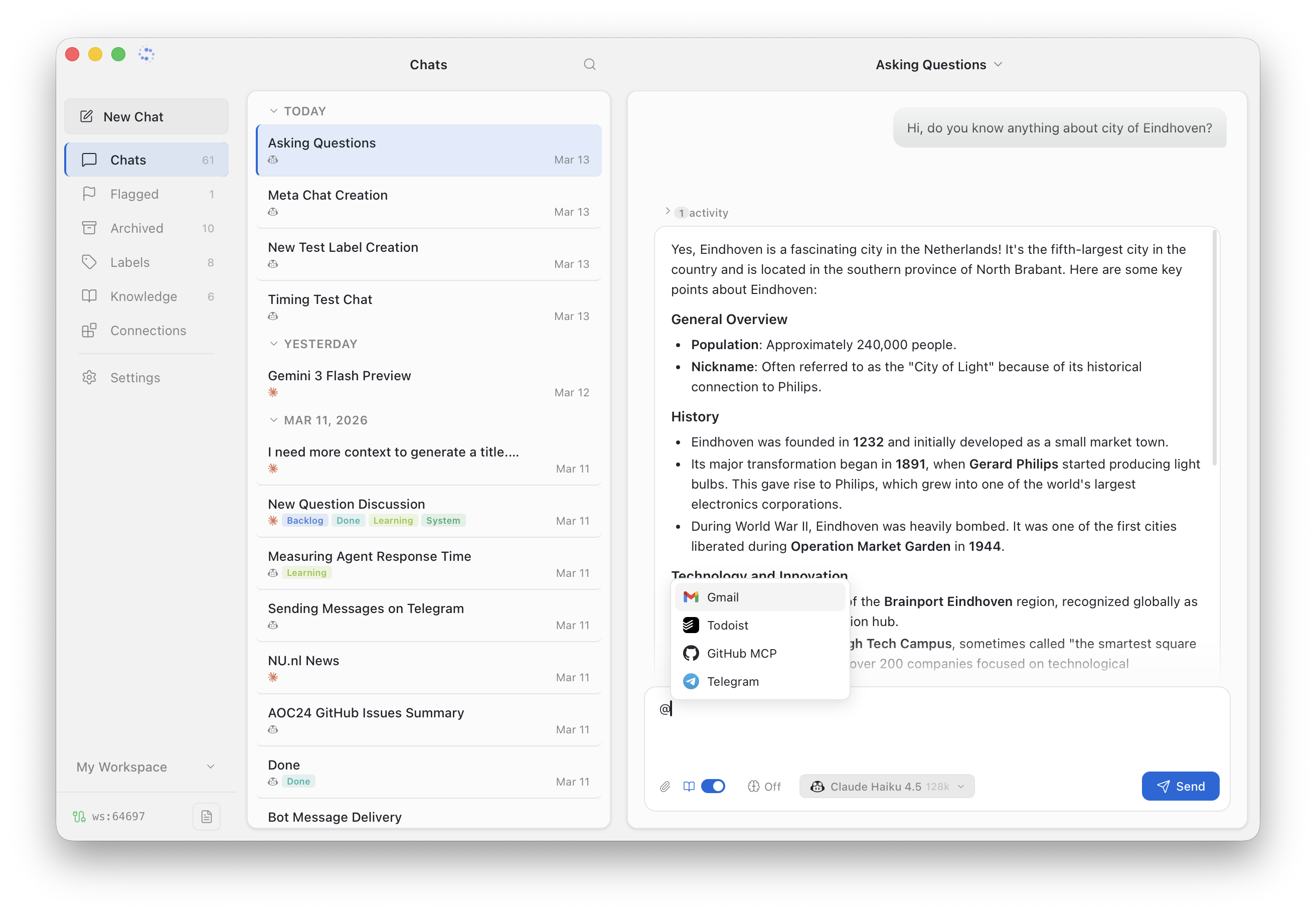
Asking Questions
Type your message in the input field at the bottom of the chat and press Enter to send. The agent responds in real-time with streamed output.
Above the input field you'll find the chat controls:
- Provider & Model — switch between connected LLM providers and their available models
- Thinking Level — control how much reasoning the model does before responding
- Knowledge — toggle local document retrieval on or off for the next message
- Services — mention a connected service by name (e.g.
@github) to let the agent interact with it
Agent Response
The agent response is streamed in real-time and rendered in a rich output format. Markdown, LaTeX, Mermaid diagrams, interactive ECharts visualizations, and syntax-highlighted code blocks are all supported out of the box. This makes Sparky a great tool for research and quick document synthesizing.
Each rich block can be expanded and downloaded as PNG or CSV (for tables), ideal for reuse in other applications or documents.
Anchors
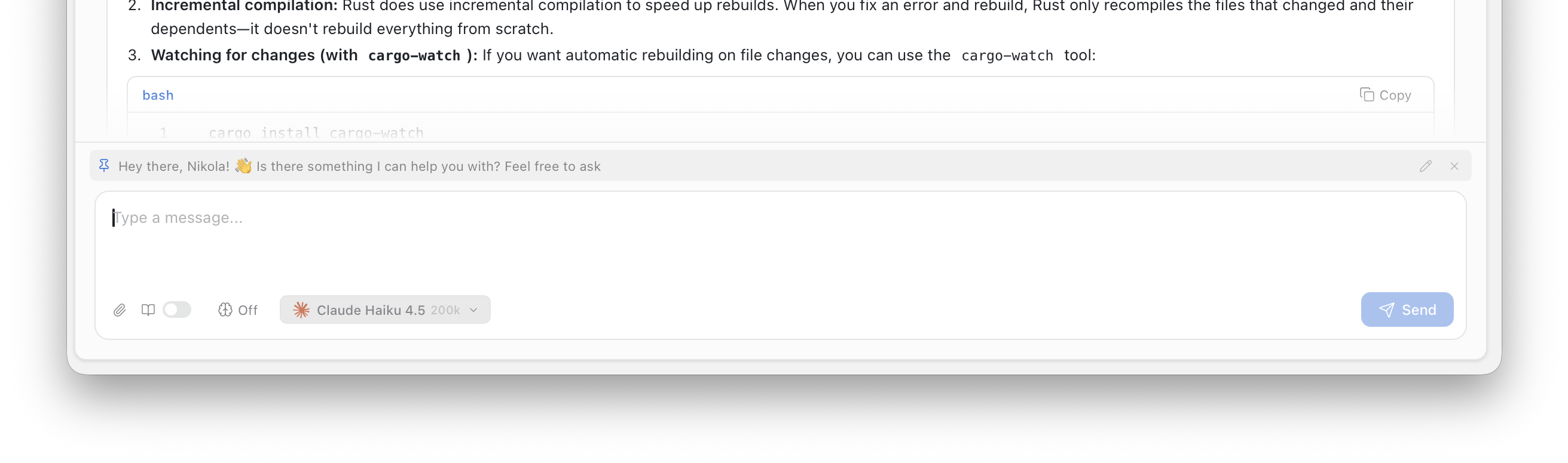
Anchors (or pins) let you mark important messages using the pin button that appears on hover. This is very useful for keeping focus within long conversations. Good for you, but also for the agent, since each anchored message is always included in the context. The agent never forgets about the important things.
Branching
Branch any conversation from any assistant message. Hover over an assistant response and click the branch icon (next to pin). Sparky creates a new chat named "Branch of <original>" with all messages up to that point — the original chat stays untouched.
This is useful for exploring alternatives. Ask a question, branch from the answer, and try a different approach without losing the original thread.
Attachments
Attach text files, images, PDFs, and many more formats to your messages. Attachments are automatically enabled or disabled based on the selected model's capabilities. Analyze an image, summarize a document, extract data from a PDF. The agent is ready for it.
Additionally
- Search (
⌘ F) — search across all messages in the conversation, including attachments. Sparky searches message content, so you can find any message by what was said in it, not just metadata like sender or date - Focus mode (
⌘ B) — opens the chat in a distraction-free fullscreen view - Print — any chat from the context menu on the chat title. Toggle visibility per message to include only what matters in the printout
- Rolling summary — kicks in after reaching 80% of the model's context window. Older turns are automatically summarized so the agent keeps the full picture without hitting token limits
- Context monitor — on each message shows the currently used context percentage based on the model's context window
- Approval system — for sensitive or destructive actions, the agent asks for your confirmation before executing. You stay in control at all times. Perfect for service interactions, file operations, or any action you want to review before it happens